Getting started
After installation, AImori works on its own – there is nothing to set up. Try it out once, so you know what it looks like when it matters. Use only official test values, never real data.
On this page
Open an AI site
Open ChatGPT, Claude, Gemini, Microsoft Copilot (in Edge on copilot.com, not on copilot.microsoft.com) or Microsoft 365 Copilot and sign in as usual. If the site was already open, reload it with F5.
Enter a test value
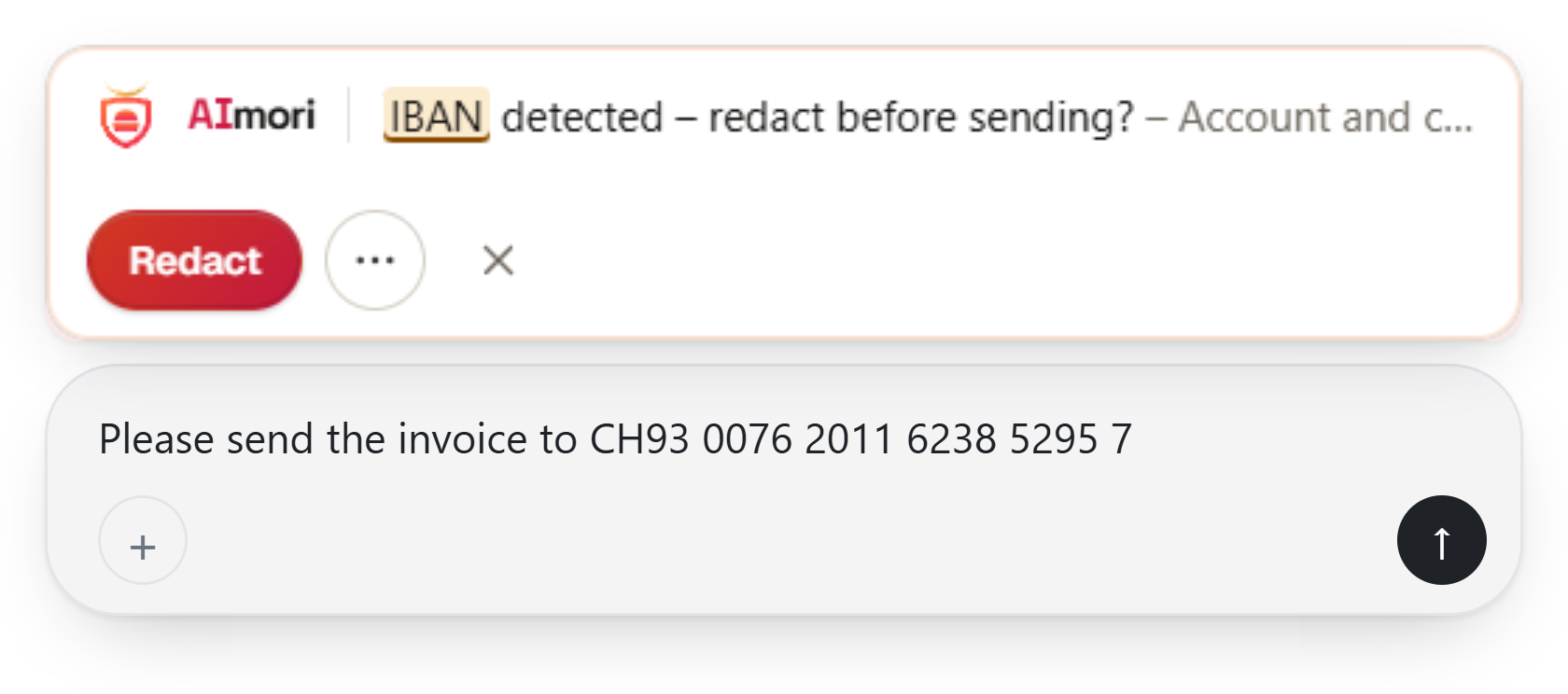
Type into the input field (example from the SWIFT IBAN Registry):
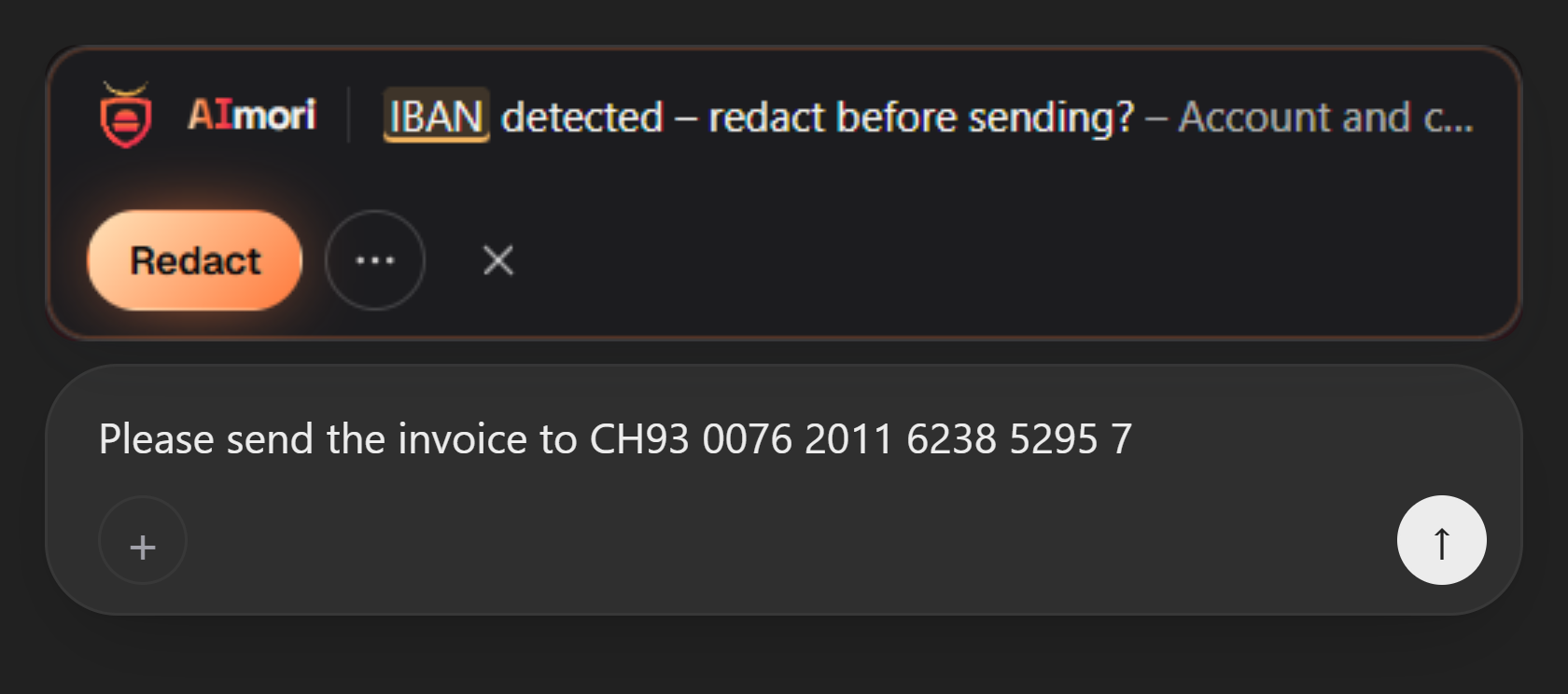
Please transfer to IBAN CH93 0076 2011 6238 5295 7After a short pause in typing (just under half a second), a narrow bar appears above the field: "IBAN detected – redact before sending?".
Try to send
Press Enter. AImori stops the send: "Sending paused: IBAN detected". Click Redact: the IBAN is replaced with
[Financial data]. Check the text and send it again – it goes out redacted.chatgpt.comAI assistant ExampleSending paused: IBAN detectedRedactEditPlease transfer to IBAN CH93 0076 2011 6238 5295 7Simplified illustration Look at the popup
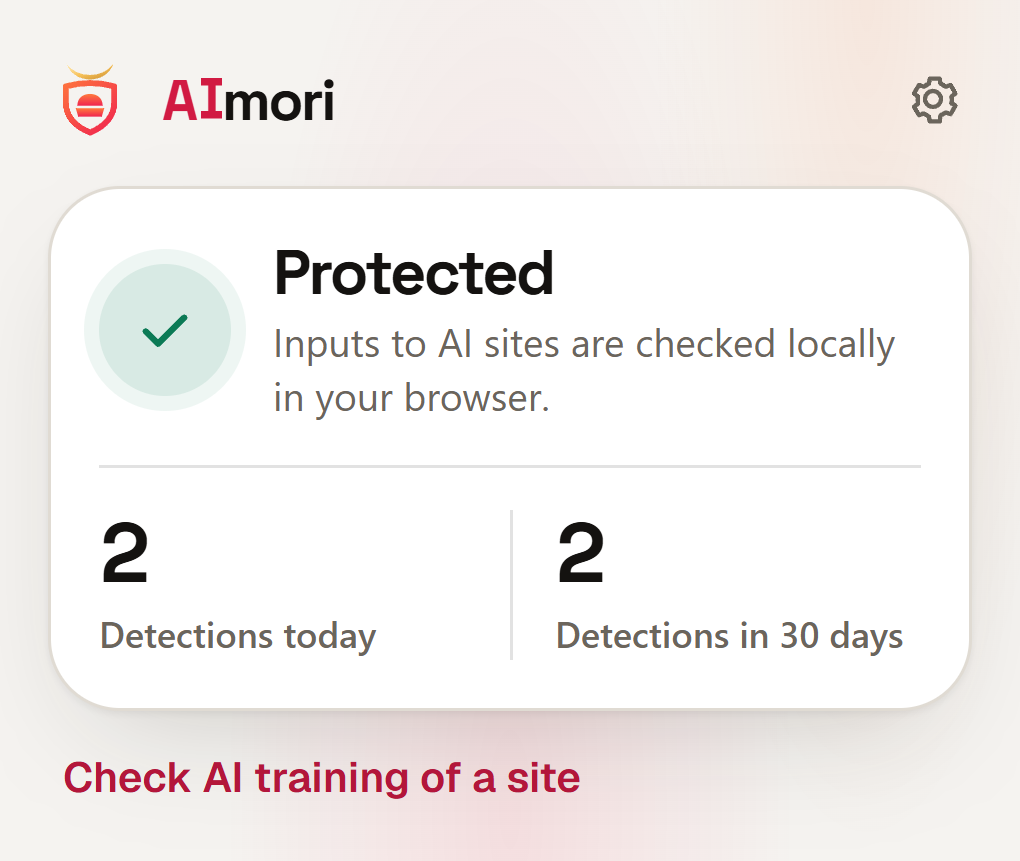
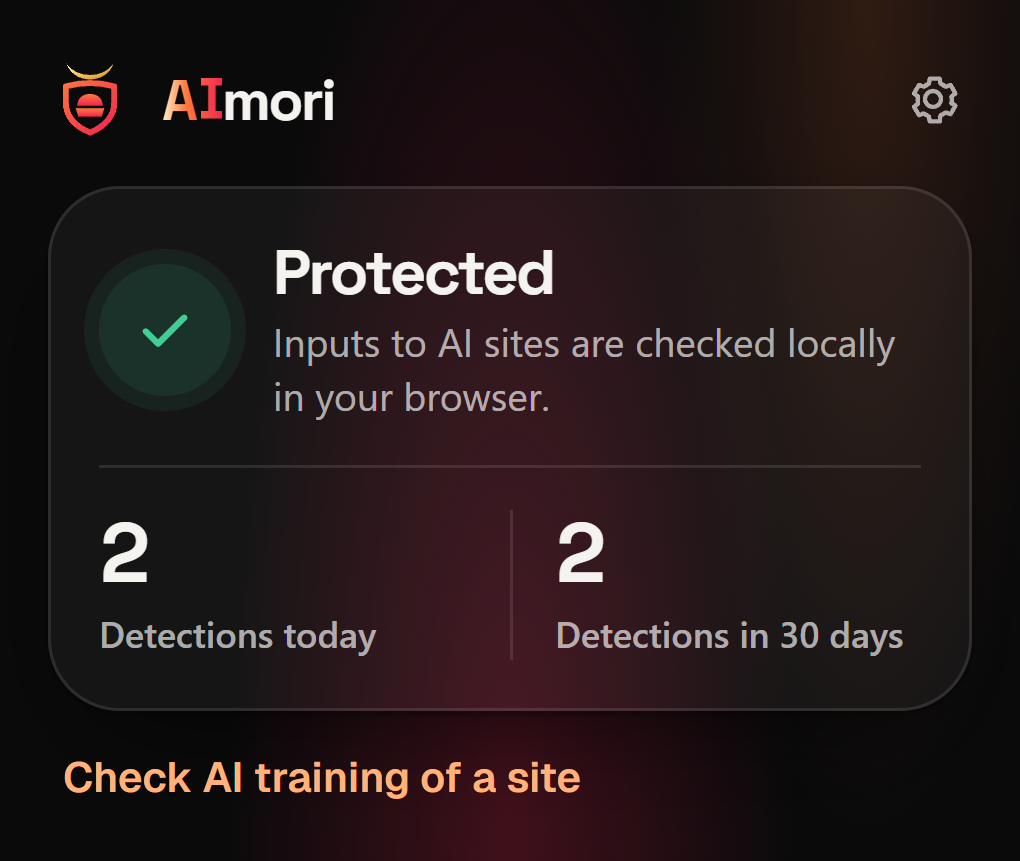
Click the AImori icon in the toolbar. The popup shows "Protected" and how often something was found today and in the last 30 days. Use the gear at the top right (Settings) to adjust everything.
Good to know
- The bar while typing is just a hint. Protection happens on send and paste – even if you miss the bar.
- AImori never shows the value it found, only the type of data.
- What exactly gets detected: What gets detected. Every button explained: Warning bar and actions.